Signage designing tool
View
Contact
The Client
This US-based company designs and sells advanced LED lighting and smart control systems. Their solutions are used around the world to enhance lighting quality, safety, productivity, and energy efficiency across various commercial and industrial environments.
Business need
The client aimed to digitize and modernize their product customization process by building an intuitive, web-based LED signage design tool. The objective was to empower users—ranging from casual buyers to industry professionals—easily design their own LED signs. Users could type in custom text, choose shapes, and instantly see how their sign would look. The tool also allowed more advanced users to fine-tune details, all within a clean, responsive interface.
Impact & Results
Unified Tool for All Users: Combined simple and advanced features in one place, making it easier for both casual users and professionals.
Increased Engagement: The improved usability and instant previews significantly enhanced user satisfaction and return visits.
Cost & Maintenance Efficiency: The move to a scalable cloud infrastructure reduced operational overhead and streamlined product updates.
Product Empowerment: The internal teams now have greater control over feature configuration and rollout, reducing time-to-market for new functionalities.
Screens
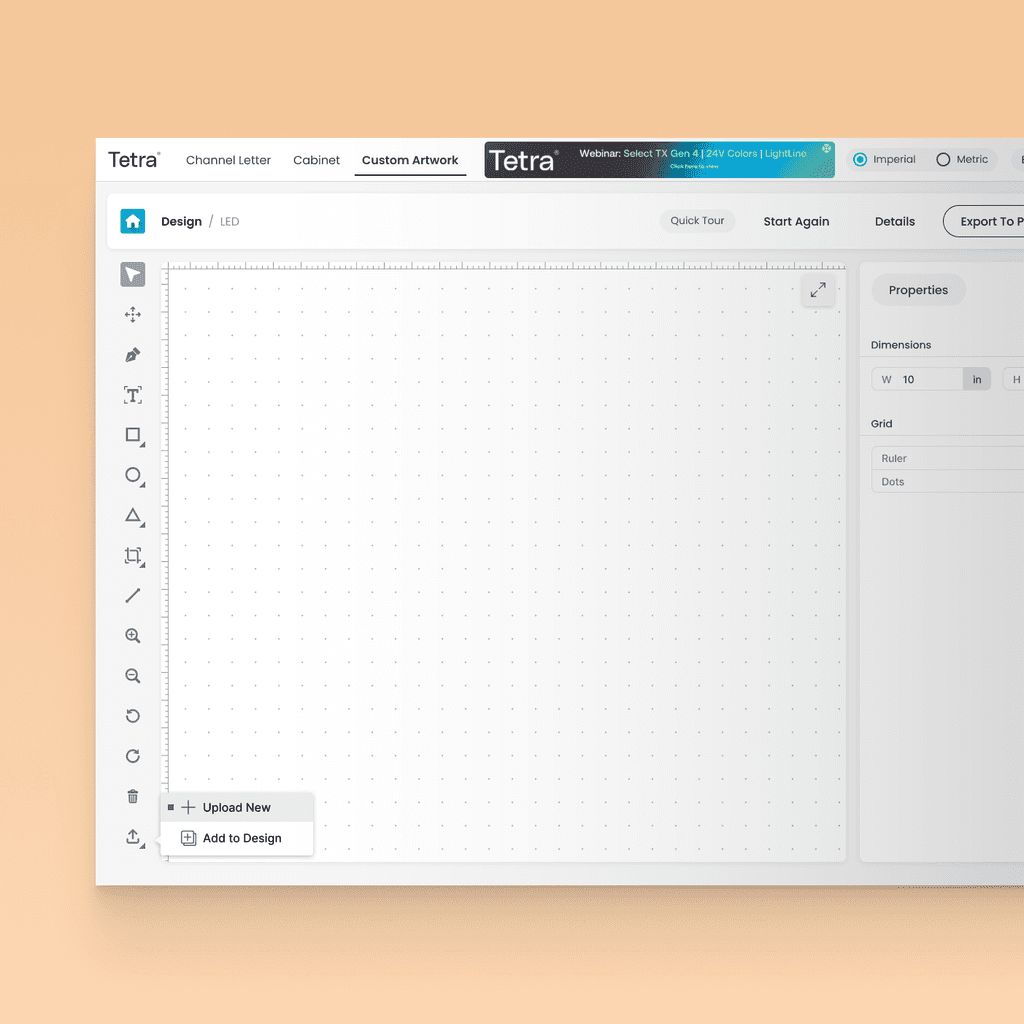
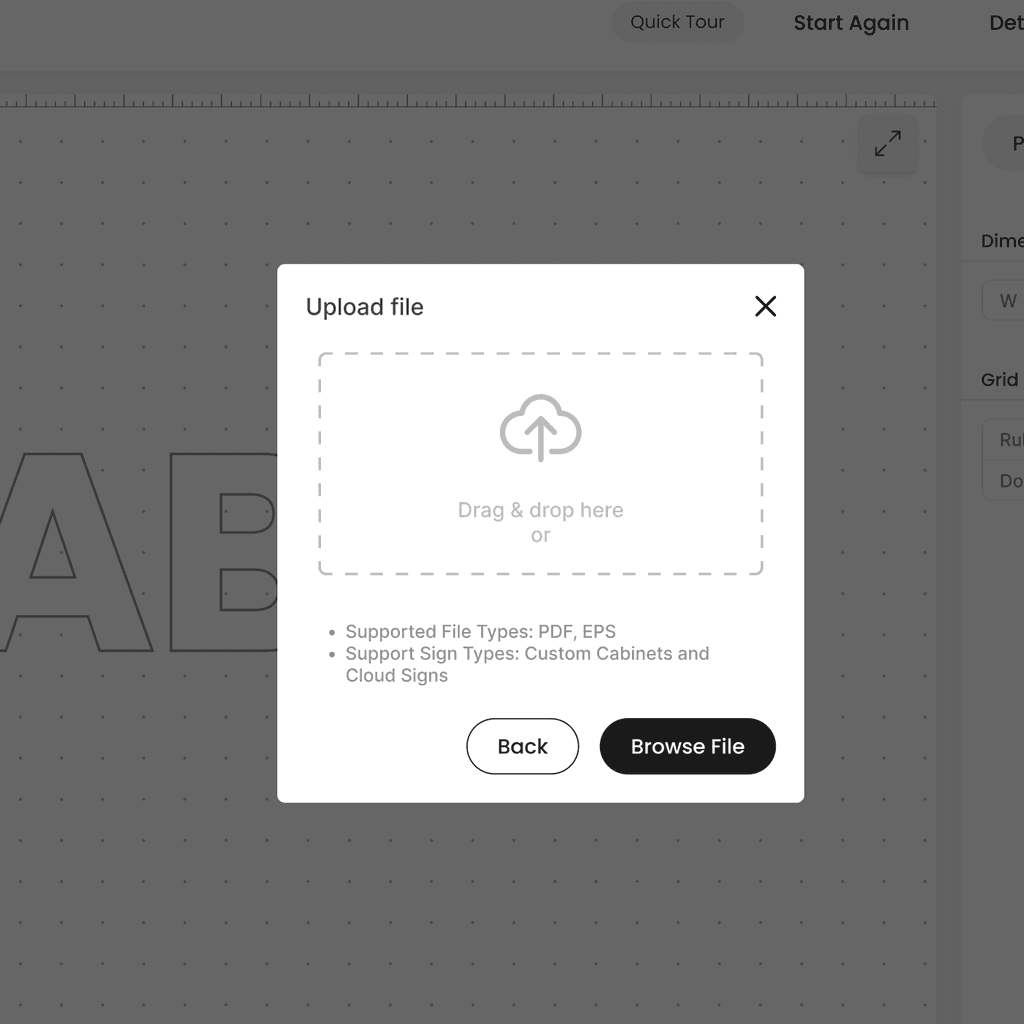
Screen 1 : Create
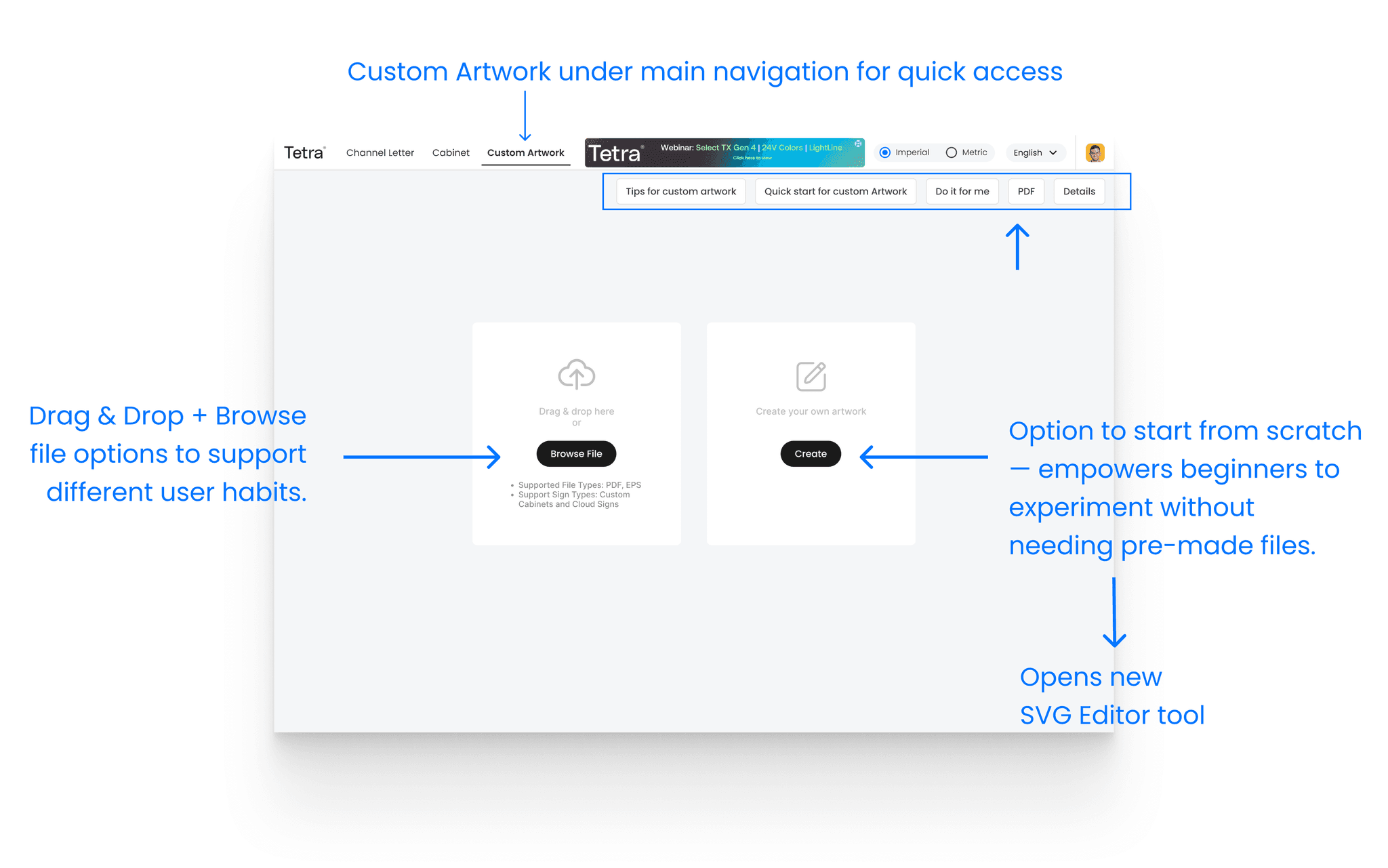
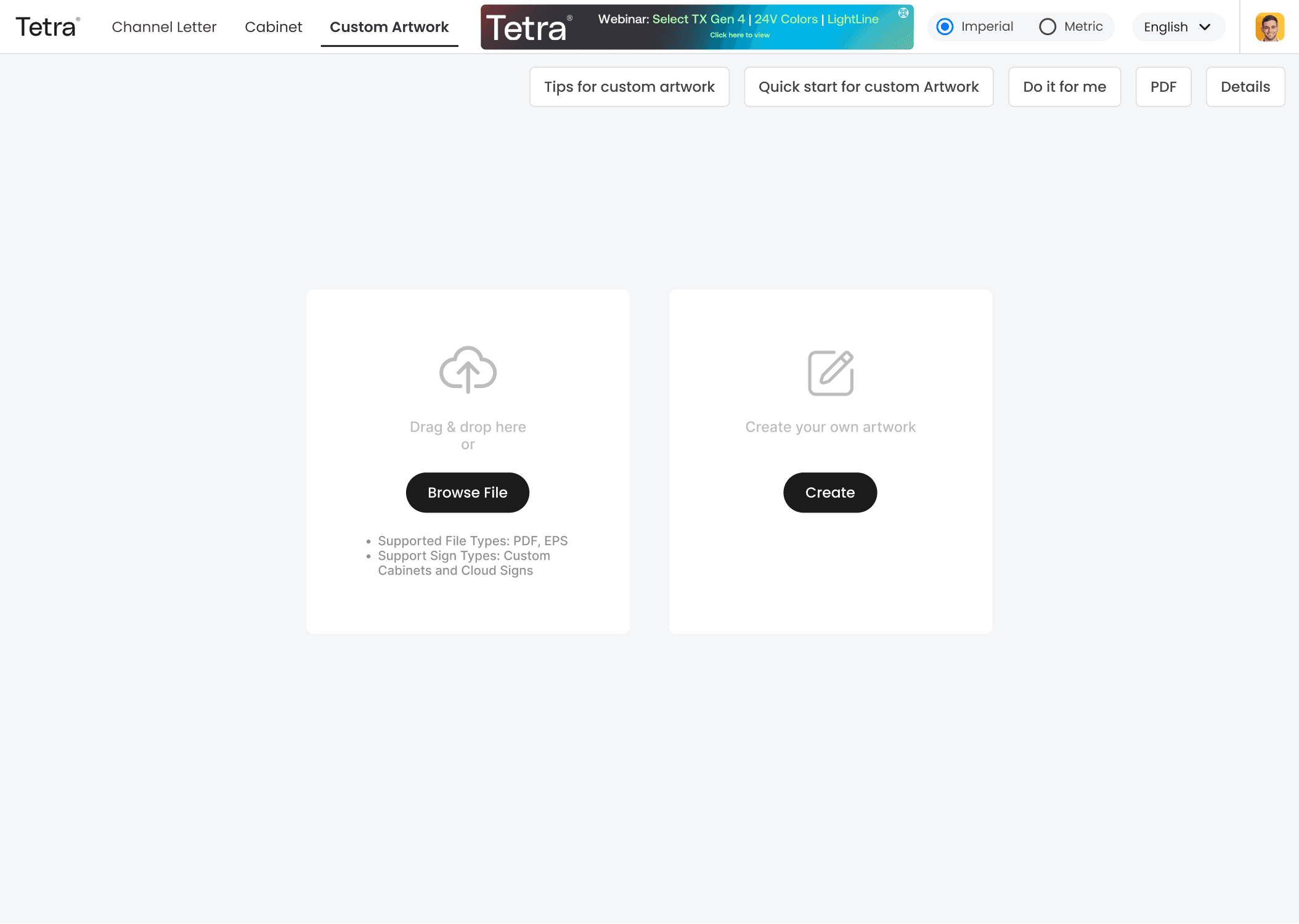
The “Create” screen provides users with multiple ways to get started, either by uploading existing artwork through drag-and-drop or browsing files, or by creating new artwork from scratch using the built-in SVG editor. Helper buttons guide onboarding with quick tips and resources.
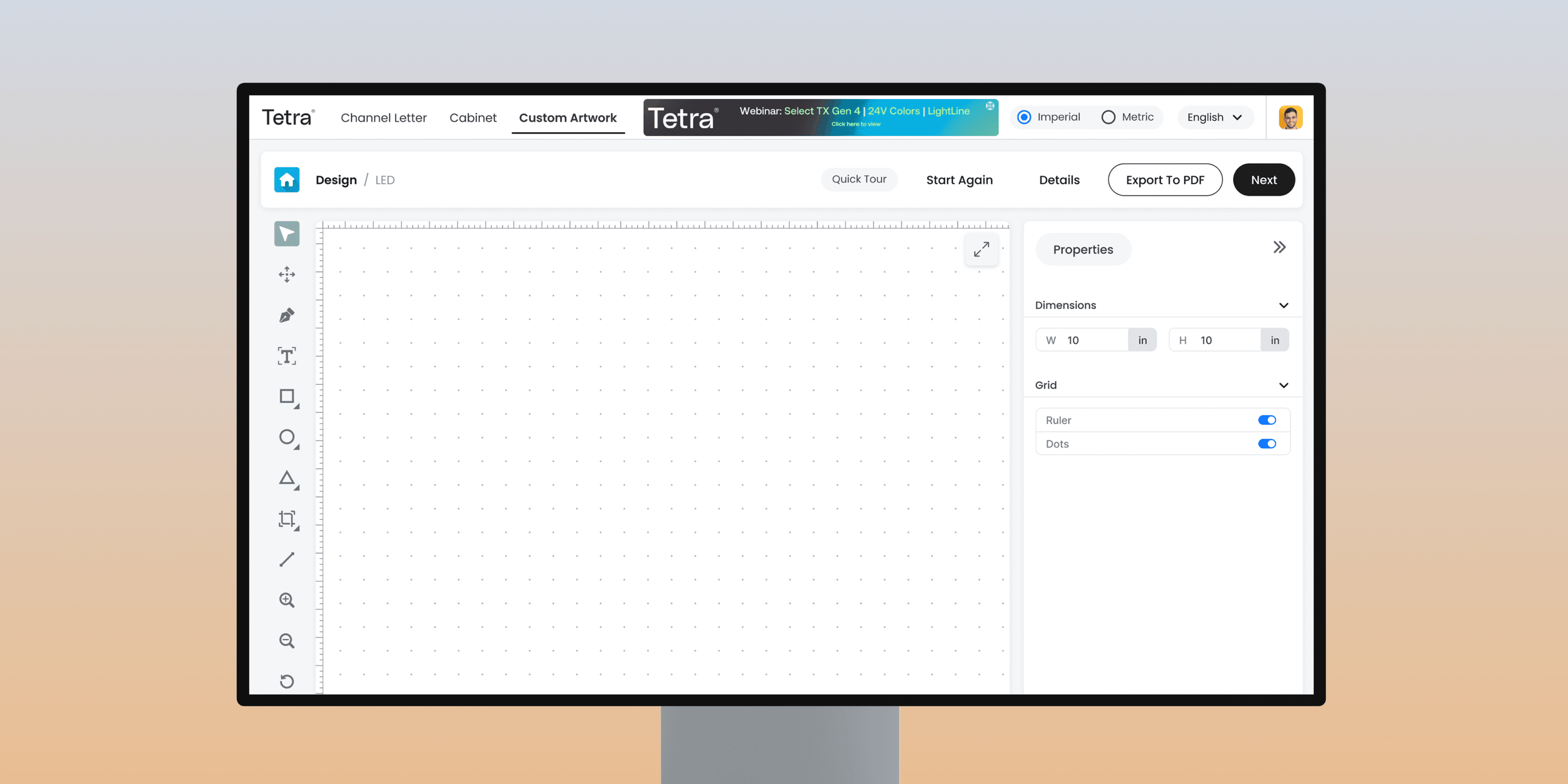
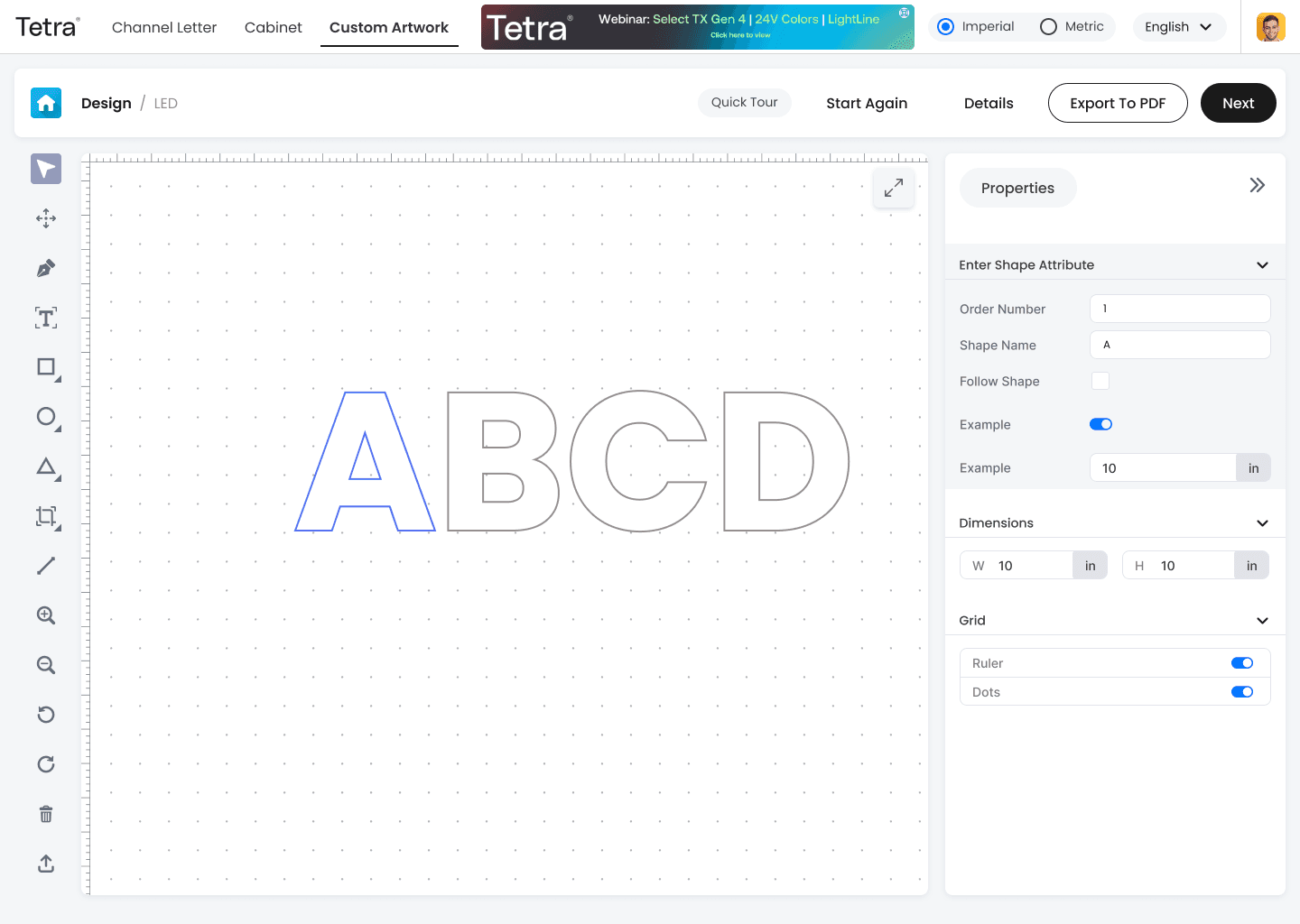
Screen 2 : Design
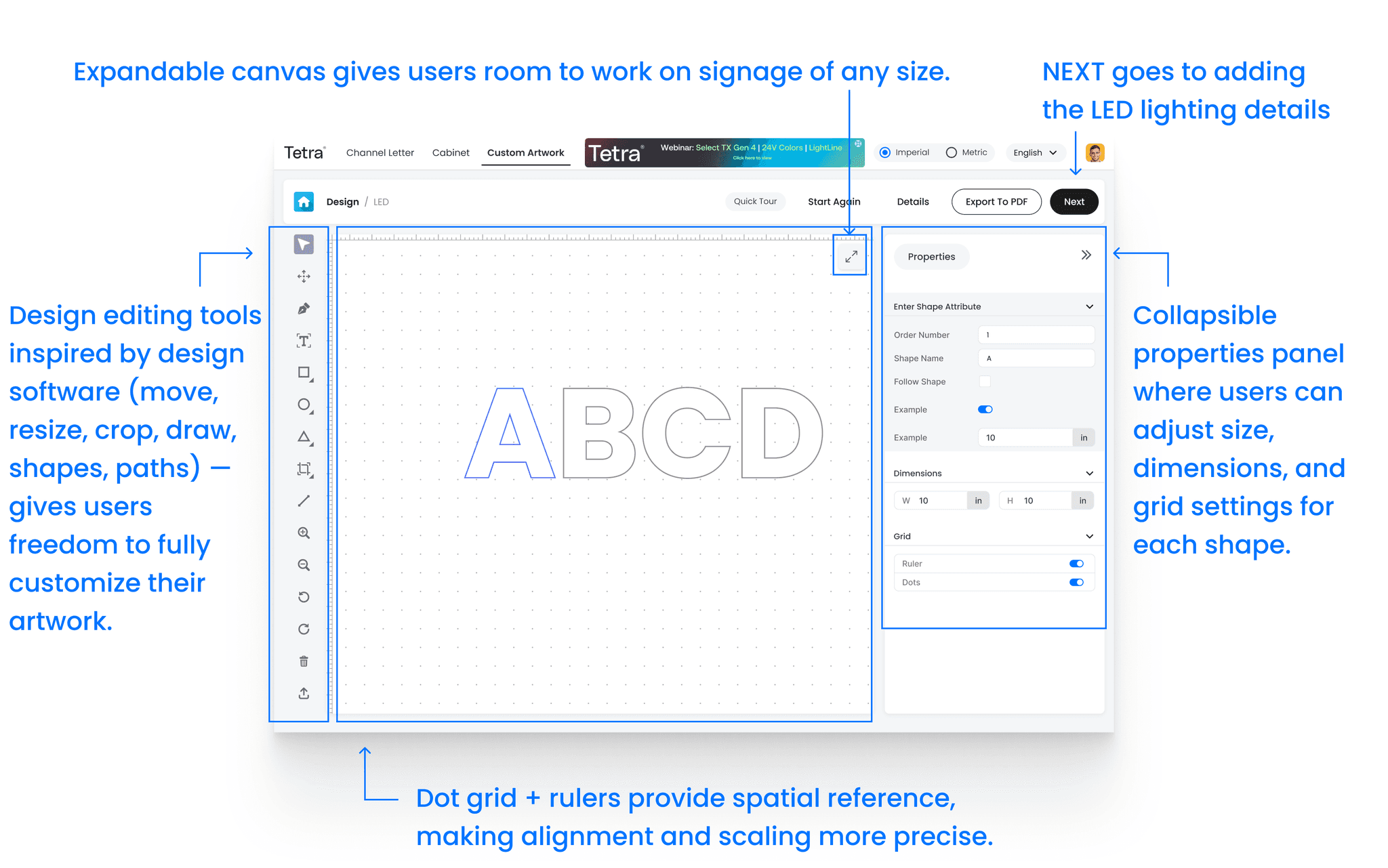
This screen provides a web-based design canvas where users can customize signage. The interface features an expandable canvas and a collapsible properties panel to adjust shape attributes like dimensions and grid settings. A dot grid and rulers aid in precise alignment, while editing tools, similar to those in other design software, offer the freedom to create and modify custom artwork.
Screen 3: Add LED
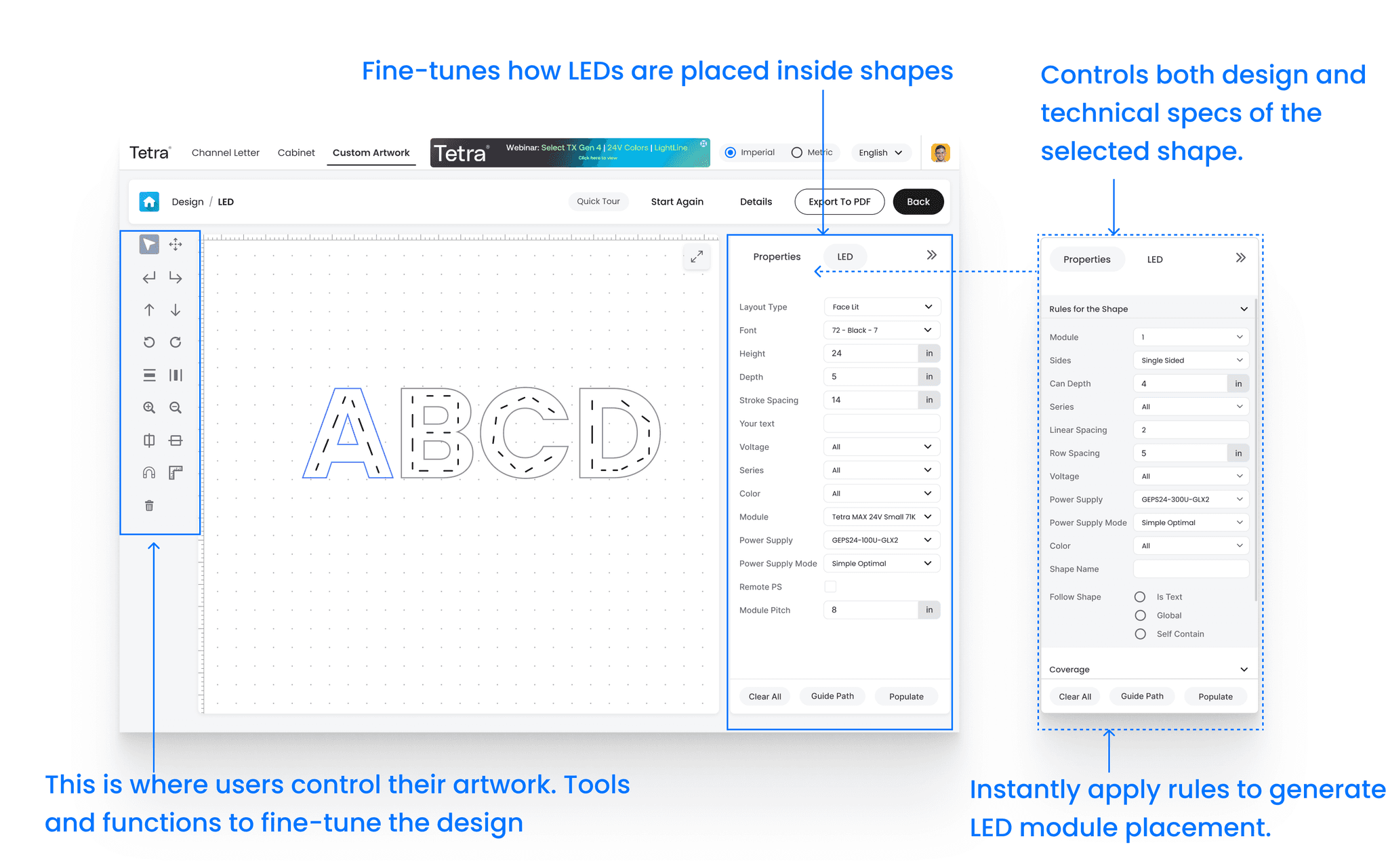
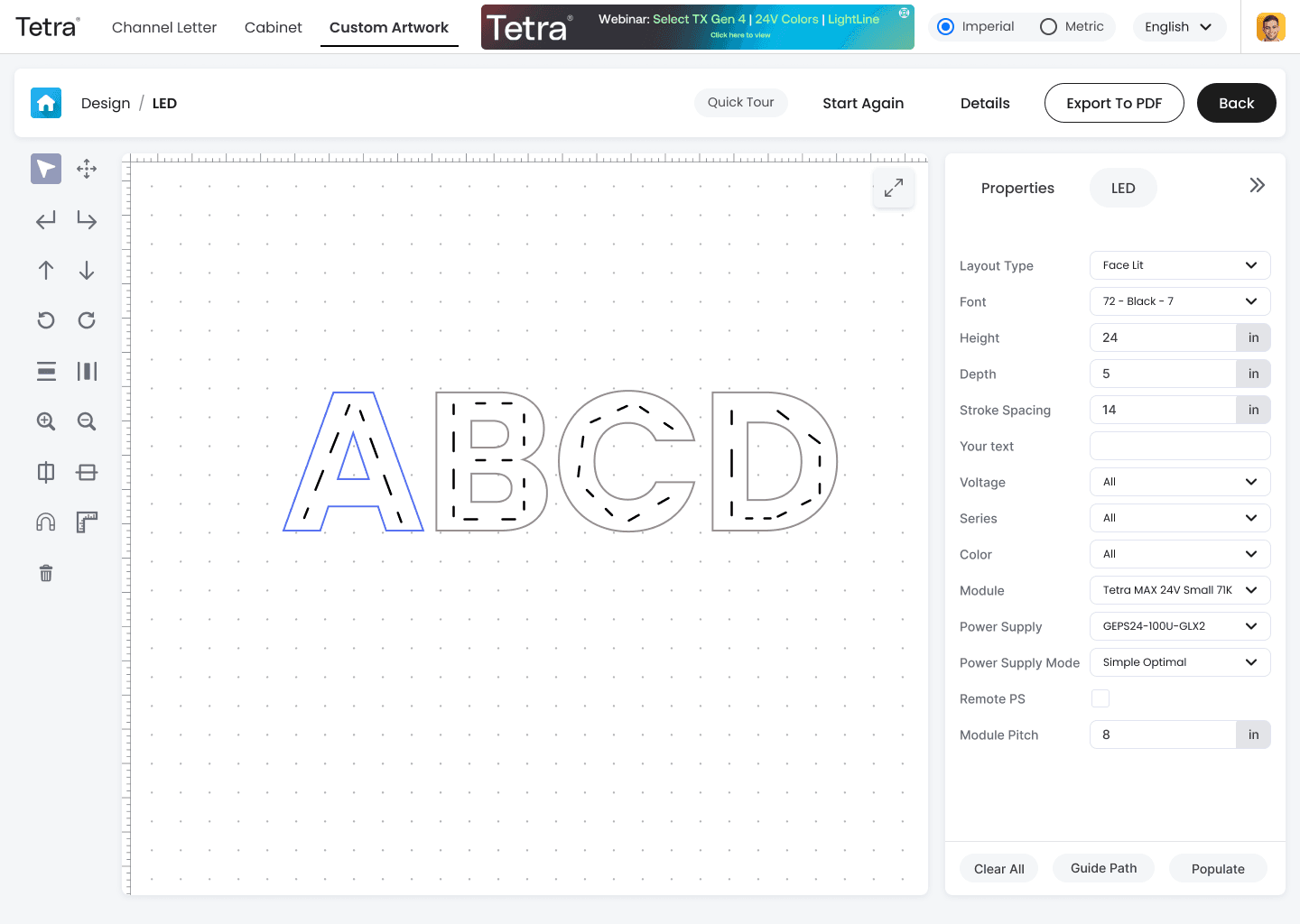
On this screen, users can fine-tune their design and add LED lighting inside the shapes. The left-hand panel contains the same editing tools as the previous step. The collapsible Properties panel on the right now offers dual functionality: it displays both the design and the technical specifications of the selected shape. The Rules for the Shape section allows for instant adjustments to how the LED modules are placed, giving users precise control over the lighting layout.
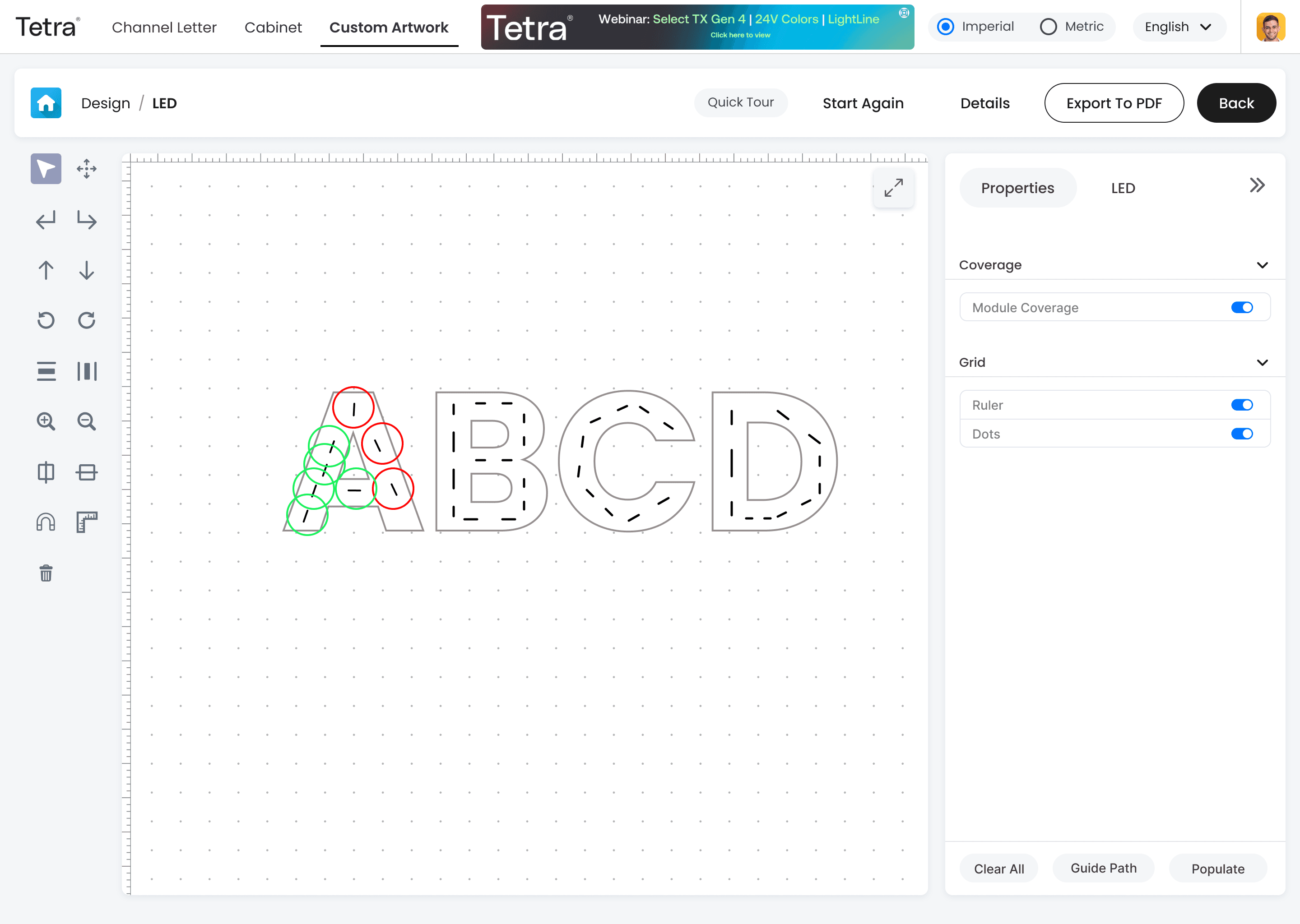
Screen 4: LED Module coverage
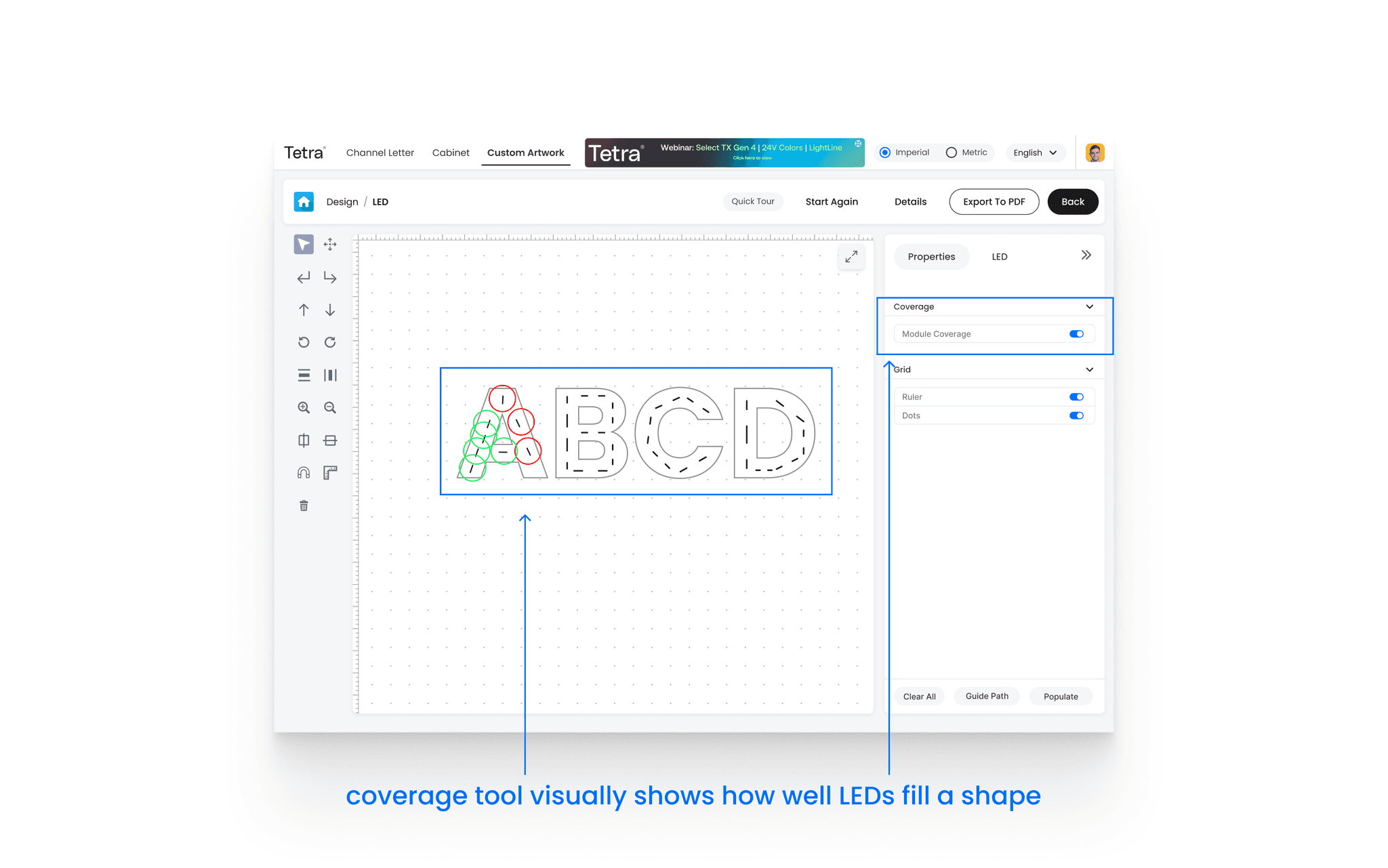
The Coverage tool also visually represents how well the LEDs fill a shape, helping designers ensure optimal light distribution and a more precise design.
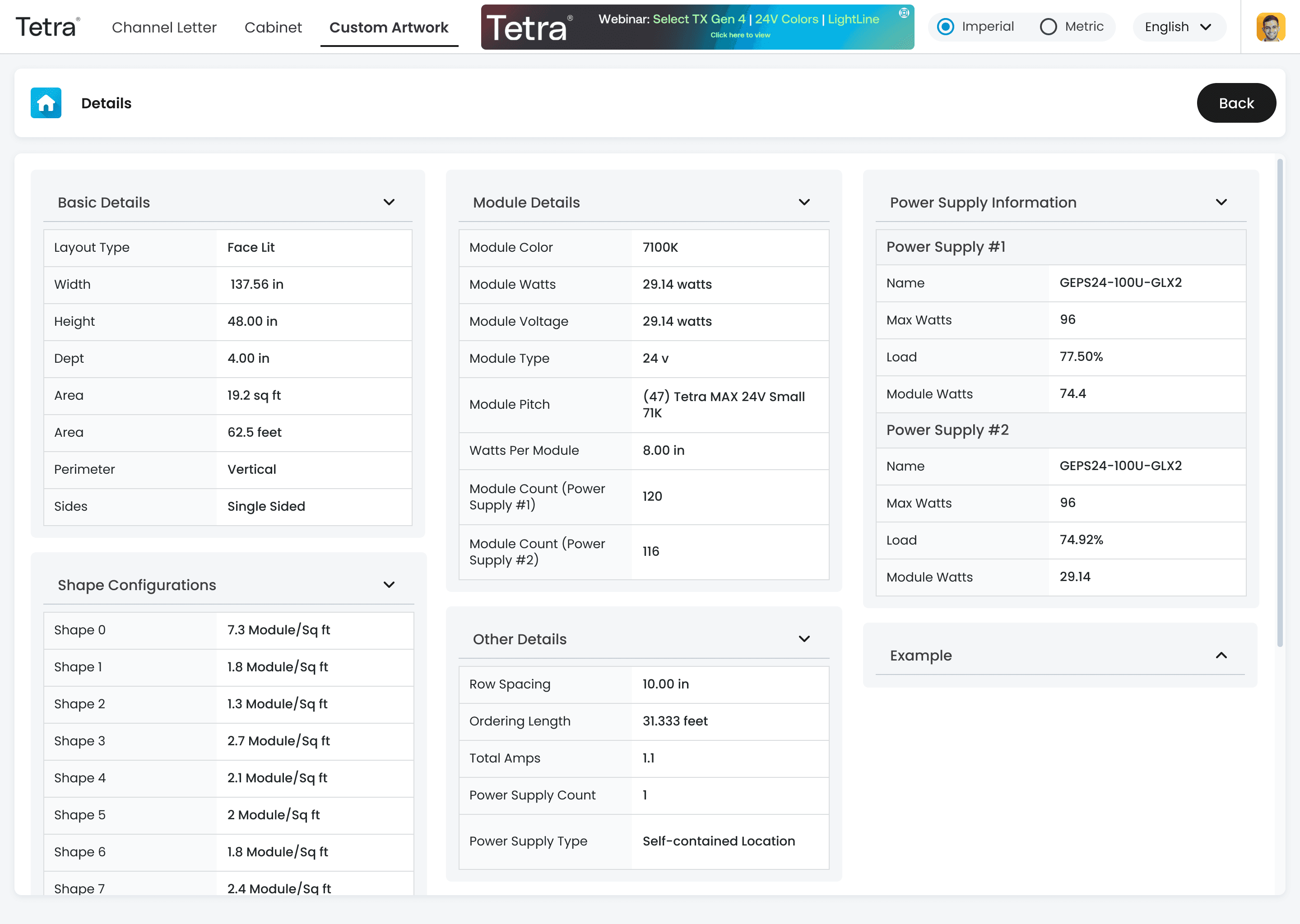
Screen 5: Information
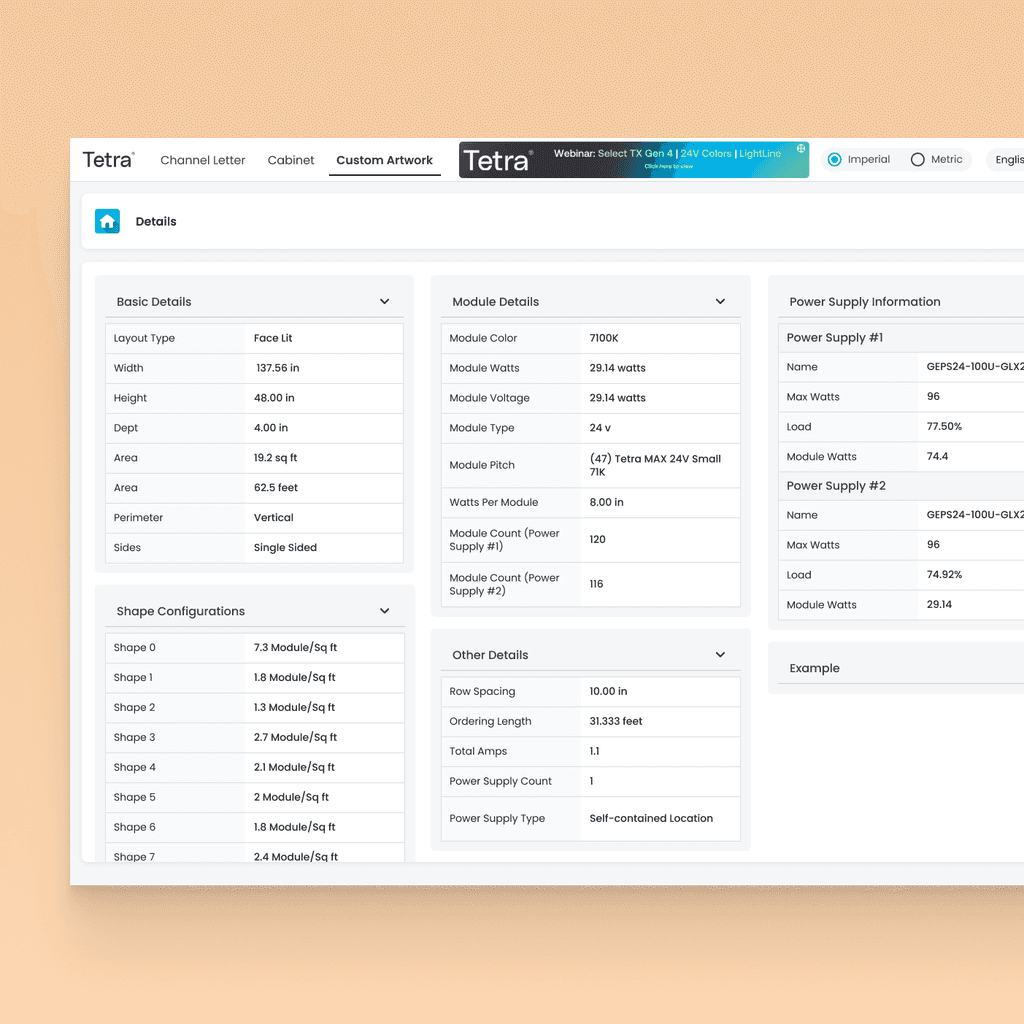
Designed a card-based system to organize key information in “Details” section, including Basic Details, Module Details, and Power Supply Information. This design allows users to easily view both global product specifications and individual configurations for multiple shapes.